
Updating from LrGeniusTagAI
Automatic migration process
When you update from LrGeniusTagAI to LrGeniusAI, the plugin will automatically migrate your existing metadata to the new version on first run. This includes keywords, titles, captions, and alt-text that were previously generated by LrGeniusTagAI. You will be presented a prompt to start the migration process after the update.
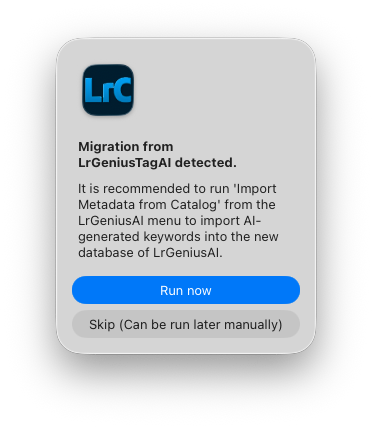
Either run the migration process immediately or choose to do it later via Library -> Plug-In Extras -> Import metadata from catalog. The migration process may take some time depending on the size of your Lightroom catalog and the amount of metadata to be migrated. During the migration, LrGeniusAI will read the existing metadata from the Lightroom catalog and import it into its own database. Once the migration is complete, all your previously generated metadata will be available in LrGeniusAI just like before.
Post-migration steps
In order to use the new features of LrGeniusAI, such as advanced search using natural language queries, you will also need to create search embeddings for your photos. This can be done via the analysis dialog (Library -> Plug-In Extras -> Analyze & Index Photos) by selecting the option "Create search embeddings". Select "All photos in catalog" as scope to create embeddings for all your photos. Uncheck "Regenerate all data (overwrite existing)" to prevent regenerating existing metadata from LrGeniusTagAI. Uncheck "Generate AI metadata" when you only want to create embeddings without creating new metadata. It is recommended to run a full analysis on your photos after the migration to ensure that all metadata and embeddings are up to date.
Normal usage of LrGeniusAI
After the migration and creation of search embeddings, you can use LrGeniusAI as usual to generate new metadata, perform advanced searches, and manage your photos. From now you should set the scope in the analysis dialog according to your needs, most probably "New or unprocessed photos" to only analyze new photos added to your catalog. If you want to selecteively generate metadata or embeddings for specific photos, you can do so by selecting them in Lightroom and choosing the appropriate options in the analysis dialog.